A Ubiquiti Dream Machine Quirk You’ve Probably Hit—And How to Fix It
Originally published March 3, 2025 | Fully Updated & Revised August 3, 2026
EXECUTIVE SUMMARY
A specialized enterprise networking guide addressing a critical WAN configuration quirk across Ubiquiti UniFi Dream Machine consoles (UDM Pro, UDM SE, UDM Pro Max). Authored by Chief Network Architect Anton Kuznetsov, this technical manual analyzes ISP gateway handoff failures on primary RJ45 WAN ports (Port 9), controller lockouts during static-to-DHCP transitions, and details a field-tested SFP+ port remapping architecture paired with Local Out-of-Band Admin provisioning to prevent catastrophic network downtime.
The Undocumented UDM WAN Lockout Quirk
At YesTechie, our low-voltage engineering team designs, deploys, and manages hundreds of enterprise UniFi networks across California and nationwide. We regularly configure UniFi Dream Machine consoles, high-density PoE switches, and multi-gigabit Wi-Fi 7 access points. However, one specific technical issue with the UniFi Dream Machine architecture consistently catches IT administrators off guard during ISP circuit swaps or static IP reconfigurations.
Consider a standard commercial deployment: your primary internet line connects directly to Port 9 (the primary 1GbE/2.5GbE RJ45 WAN port) on a UDM Pro or UDM SE console, configured with a static public IP assigned by your Internet Service Provider (ISP). The network operates reliably until the provider modifies their gateway subnet, alters VLAN tagging, or you migrate to a new commercial fiber provider.
When the primary WAN configuration becomes invalid, the UDM console loses internet connectivity. Because cloud-managed UniFi Network Controllers rely on an active internet link to authenticate remote administrative sessions via unifi.ui.com, the entire management interface becomes completely unreachable.
Local web access fails if the administrator lacks a dedicated local account, leaving the network locked in an offline state even though internal LAN traffic may still be switching locally.
Why Legacy Recovery Methods Cause Operational Catastrophe
When a UDM console drops offline due to a WAN configuration mismatch, inexperienced technicians often resort to a hard factory reset. In commercial enterprise environments, this approach leads to severe operational disruption:
- Weekly Auto-Backup Vulnerability: By default, UniFi OS executes automated system backups on a weekly schedule. Any VLAN reconfigurations, firewall rules, VPN tunnels, or custom QoS settings implemented since the last backup cycle are completely destroyed during a factory reset.
- Orphaned Access Points and Switches: Factory resetting the core gateway breaks the security adoption token between the console and managed downstream hardware. In complex installations, adopting orphaned switches, access points, and security cameras requires manual hard-resetting at the physical device location using pinhole buttons on high ceilings or warehouse trusses.
- Extended Business Downtime: Rebuilding enterprise firewall matrices, DHCP scope reservations, and guest isolation policies from scratch requires hours of emergency low-voltage engineering, resulting in costly business interruptions.
The YesTechie Battle-Tested Recovery Architecture
To eliminate WAN lockouts permanently and guarantee zero-downtime management access during ISP circuit transitions, our engineering team enforces a two-part architectural framework on every UniFi console deployment.
1. Provision a Dedicated Local Administrator Account
During initial gateway provisioning, create a local administrative user directly on the UniFi OS console alongside your cloud-authenticated Ubiquiti account. Your cloud-based UniFi account works reliably until the controller drops offline. A local user gives you a permanent backdoor to manage your physical hardware, regardless of WAN status.
- Navigate to UniFi OS > System Settings > Admins & Users.
- Create a local administrative profile with strong credentials stored inside your enterprise password vault.
- When cloud access drops due to WAN failure, connect an engineering laptop directly to an isolated LAN port on the UDM, navigate to the local gateway IP address (default is
192.168.1.1), and log in locally without requiring an active internet link or cloud authentication.

2. Implement the SFP+ WAN Port Remapping Strategy
Instead of relying solely on the standard RJ45 WAN port (Port 9), utilize the 10G SFP+ WAN port (Port 10) for your primary static IP circuit using an industrial SFP-to-RJ45 adapter (available for around $20).
- Snag a compatible 10G SFP+ to RJ45 copper adapter and insert it into Port 10.
- Configure Port 10 as your Primary WAN (WAN1) interface inside UniFi Network Settings, assigning your ISP static IP parameters.
- Leave Port 9 configured as a secondary or backup WAN interface set to automatic DHCP.
If your primary ISP alters their gateway settings and breaks the Port 10 static IP connection, simply plug an auxiliary Ethernet line (such as a 5G/LTE backup modem, mobile hotspot, or secondary DHCP line) directly into Port 9. The UDM automatically acquires a local IP via DHCP over Port 9, restoring cloud controller access instantly so you can reconfigure Port 10 static parameters remotely without resetting the console.

This small configuration tweak has saved our team and our enterprise clients hours of emergency downtime. Furthermore, utilizing Port 10 SFP+ is a great way to future-proof your network for upcoming multi-gigabit fiber upgrades.
Field Evidence: Real-World YesTechie Deployments
To understand how proactive WAN architecture prevents catastrophic downtime during commercial expansions, review two enterprise field projects executed by the YesTechie team:
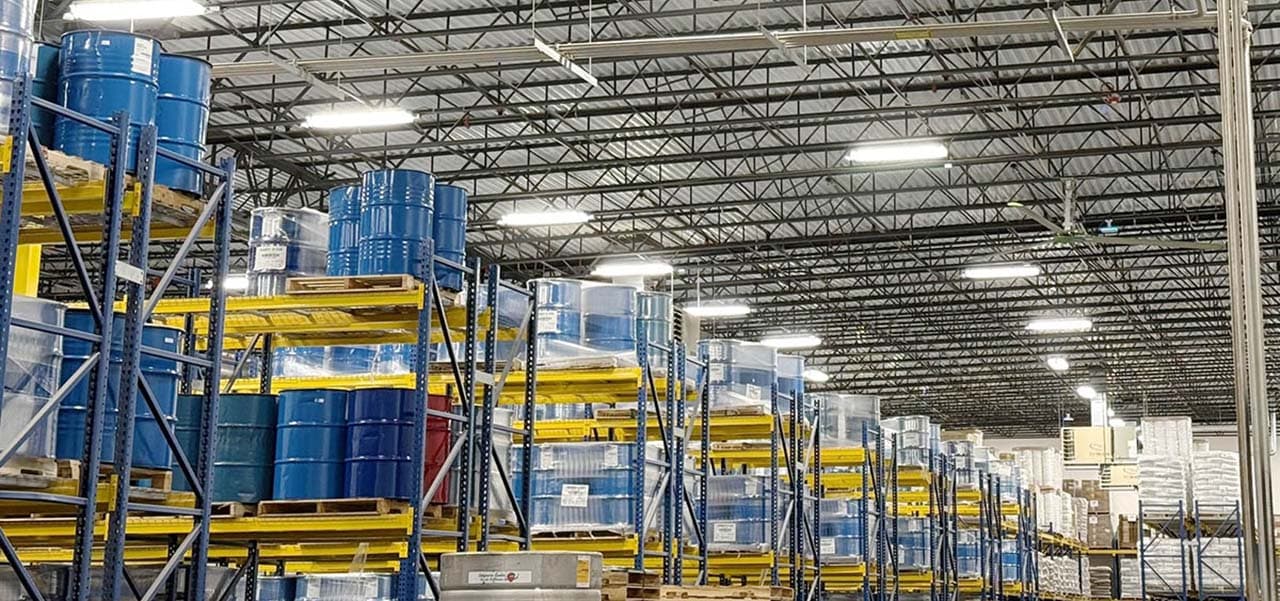
1. High-Density Logistics Center: 700,000 Sq Ft Warehouse Wi-Fi 7 Deployment
- The Challenge: Engineering a multi-gigabit wireless and switching infrastructure across a massive 700,000 sq ft logistics facility in Ohio. Operating on a strict 20-day deployment deadline, the facility required uninterrupted network availability for automated material-handling scanners and inventory tracking systems.
- Architectural Solution: Our engineering group deployed a UDM SE core routing gateway linked via 10GbE fiber backbones. We enforced our SFP+ WAN remapping architecture on Port 10 paired with a local out-of-band administrative profile. During final commissioning, when the local ISP changed public gateway subnets without prior notice, our team accessed the gateway locally via Port 9 DHCP backup, updated routing tables in under two minutes, and avoided a full network rebuild.

- Measurable Outcome: Maintained 100% network uptime during ISP cutover, met the 20-day deployment deadline, and saved an estimated 12 hours of emergency re-adoption work across dozens of high-bay access points.
2. Manufacturing Infrastructure Modernization: Fortinet to Ubiquiti Migration
- The Challenge: Migrating an active industrial manufacturing plant from legacy Fortinet hardware to an enterprise Ubiquiti UniFi ecosystem. The plant required zero disruption to active production lines during the firewall and gateway transition.
- Architectural Solution: I directed the migration plan, pre-configuring the new UniFi gateway with secondary WAN fallback rules and local administrative backdoors. When swapping ISP fiber handoffs from the legacy FortiGate to the UDM core, our technicians utilized the SFP+ WAN port strategy to validate static IP handshakes while maintaining secondary access over Port 9.

- Measurable Outcome: Executed a seamless industrial network migration with zero production line stoppage, cut annual hardware maintenance fees, and provided local IT staff with a fail-safe WAN configuration.
UniFi Dream Machine WAN Architecture: SFP+ Remapping vs. Standard Single-Port Setup

UniFi Dream Machine WAN Architecture: SFP+ Remapping vs. Standard Single-Port Setup
For quick reference and mobile readability, here is the text-based breakdown of Standard Single-Port Configuration vs. YesTechie SFP+ WAN Remapping:
YesTechie SFP+ WAN Remapping Architecture
- Primary WAN Interface: Port 10 (10G SFP+ with RJ45 Transceiver) assigned to Static IP.
- Secondary Recovery Interface: Port 9 (1GbE/2.5GbE RJ45) pre-configured to Automatic DHCP.
- Local Out-of-Band Access: Local Admin account enabled for offline console management.
- ISP Cutover Resilience: Immediate recovery by attaching any auxiliary DHCP source to Port 9.
- Operational Risk: Zero risk of console lockout or un-adoption of downstream switches and APs.
Standard Single-Port WAN Configuration
- Primary WAN Interface: Port 9 (RJ45) assigned directly to Static IP.
- Secondary Recovery Interface: None (Port 10 left unconfigured or unused).
- Local Out-of-Band Access: Cloud-only authentication (locks out completely when internet drops).
- ISP Cutover Resilience: High risk of total console disconnection upon ISP subnet changes.
- Operational Risk: Requires factory resets, manual pinhole device re-adoptions, and config rebuilds.
Conclusion: Future-Proofing Enterprise Gateway Architecture
A minor configuration quirk should never jeopardize commercial network uptime. By deploying an SFP+ to RJ45 adapter on Port 10 and provisioning local administrative credentials during initial setup, IT teams insulate their UniFi Dream Machine consoles against unexpected ISP gateway changes.
Beyond emergency recovery, utilizing Port 10 SFP+ for primary internet handoffs lays the physical foundation for future multi-gigabit fiber upgrades, allowing your network to scale seamlessly as bandwidth requirements grow.
Partner With YesTechie Engineering
Our team of certified Ubiquiti integrators specializes in enterprise network architecture, low-voltage cabling, high-density Wi-Fi 7 distribution, and bulletproof security deployments.
Whether you are deploying a single UDM Pro SE for a commercial office or building a multi-site enterprise network across industrial facilities, YesTechie delivers engineered reliability without recurring software licensing fees.
Stuck on a complex network glitch or planning a full facility upgrade? Contact the YesTechie engineering team at (818)275-2707 or submit your floor plans today to optimize your Ubiquiti ecosystem for maximum performance.
Frequently Asked Questions (FAQ)
1. Which UniFi Dream Machine models have the Port 9 / Port 10 WAN configuration?
This WAN port layout applies to the UniFi Dream Machine Pro (UDM Pro), UniFi Dream Machine SE (UDM SE), and UniFi Dream Machine Pro Max (UDM Pro Max). All three rack-mounted consoles feature Port 9 as an RJ45 WAN port and Port 10 as an SFP+ 10G WAN port.
2. What type of SFP adapter is required to use Port 10 with a standard Ethernet cable?
You need a compatible 10G SFP+ to RJ45 Transceiver Module (such as the official Ubiquiti UACC-CM-RJ45-10G or a verified third-party module). This adapter converts the SFP+ optical slot into a standard RJ45 port supporting 1G, 2.5G, 5G, or 10G copper Ethernet connections.
3. How do I access my UDM locally if the internet connection goes down completely?
Connect an Ethernet cable from your computer directly into any available LAN port on the UDM or local switch. Open a web browser, enter the gateway's local IP address (default is
192.168.1.1), and log in using the Local Admin credentials created during initial setup.
4. Can I use Port 9 and Port 10 for dual WAN load balancing or failover?
Yes. UniFi OS supports native Dual WAN Load Balancing and Failover. By configuring Port 10 as WAN1 and Port 9 as WAN2, you can run two active ISP connections simultaneously or set WAN2 to take over automatically if WAN1 loses connectivity.
5. Why shouldn't I just factory reset my UDM when it goes offline?
Factory resetting a UDM wipes all local controller settings, VLAN configurations, firewall rules, and adoption keys. If your last automatic backup is outdated, you will have to manually reset and re-adopt every switch, access point, and camera on the network, causing extensive business downtime.

.svg)